NaijaxNet | Free Browsing Cheats, Tech Tips, News, Football Gossips & Android Reviews: Tips And Tricks - Tech Solutions NaijaxNet | Free Browsing Cheats, Tech Tips, News, Football Gossips & Android Reviews: Tips And Tricks
NaijaxNet Blog
❌
Trending Posts
Own A Blog Like This
For Questions, Inquiries, Click Here
Page | Group - Follow us - Call us - Hire Us - Email Us
NaijaxNet


Open Menu
Featured Featured
mtn-00k-20182019-free-browsing-for
MTN 0.0k 2018/2019 Free Browsing For Http Injector, KPN, Eproxy, Spark VPN, Tweakware And Psiphon XP
here-is-how-nnu-works-as-member-you
Join NNU And Earn Upto #50,000 A Month In 2018
top-secrets-in-ranking-1-on-google
Top Secrets In Ranking #1 On Google Search Engine
best-free-hosting-and-domain-name
Best Free Hosting And Domain Name


Showing posts with label Tips And Tricks. Show all posts

Monday, 7 August 2017

NaijaxNet

How To Upgrade Tecno Phantom 6 Plus To Android 7.1.1 Nougat

Android 7.1.1 Nougat

Android 7.1.1 Nougat

Hello fellas, I'm glad to let you all know that Android 7.1.1 Nougat OTA download is now available for Tecno Phantom 6 Plus. Today I'm going to show you how you can successfully upgrade your Tecno Phantom 6 Plus to Android 7.1.1 Nougat.
It's about 2.7GB or more, Before the upgrade make sure you have more than the gig required.
Unlike other OTA upgrades that we have seen resently released for other phones, This is no different, All you have to do is get your phone ready for the procedures.

Procedures:
  1. Your Android phone
  2. Fully charged battery
  3. Unrooted phone, If rooted kindly unroot 
  4. Data upto 2GB or more
  5. Good 3G internet connection
There are two ways by which you can successfully upgrade your Tecno Phantom 6 Plus.
It's either you do a system upgrade which we will be discussing here or you download the OTA file and upgrade it manually, In which ever way you want it.
Firstly, we will be dealing on how you can do a system upgrade provided to you by your phone manufacturer.

Procedures On How To Do A System Upgrade On Tecno Phantom 6 Plus
  1. Go to your phone Settings
  2. Locate About Phone, click on it
  3. Click on System Update
Note: Your phone searches for the update and downloads it if available over the air, After successful download, Do not panic it's normal that your phone reboots and installs the update within some minutes.
After successfull installation, Congratulations your phone is now running on Android 7.1.1 Nougat.

Watch The Video Below


But in case you are not privileged to do a system upgrade within your phone or your phone keeps displaying "No Updates Available". Don't worry you can still uprade your phone using the second method.

How To Upgrade Tecno Phantom 6 Plus Using SDcard Method
  1. Copy the downloaded Nougat update file [Nougat_7.1.1_xxxxx.zip] to root folder i.e main file manager of your sdcard
  2. Now locate your phone Settings
  3. Click on About Phone
  4. Locate and click on System Software Ugrade
  5. Click on SDcard
  6. Locate the file and Install
Note: Your phone reboots and process in some minutes, After successfull upgrade, Congratulations your Tecno Phantom 6 Plus is now running on Android 7.1.1 Nougat.
That's all!!
entclass-point
entclass-gfx

Monday, 24 July 2017

NaijaxNet

How To Put Affiliate or Adsense Advert In Middle of Blogger Blog Post

 Affiliate or Adsense Advert In Middle of Blogger Blog Post

Affiliate or AdSense Advert


Although, there exists an advanced hack you can implement to insert an ad in the middle of a Blogger post but I'm sharing with you in this post, a trick that simply involves the use of Blogger's "Post Template" feature.
According to research by Naijaxnet Blog.


There are series of tutorials online on how to place Adsense below Blogger post title and at the end of Blogger post but you will hardly see tutorials that will explain how to easily place adsense or affiliate advert in the middle of a Blogger post. This is simply because it's not something you can easily achieve by copying and pasting your ad code in your blog's html.

Although, there exists an advanced hack you can implement to insert an ad in the middle of a Blogger post but I'm sharing with you in this post, a trick that simply involves the use of Blogger's "Post Template" feature.


Post template helps save you time by pre-formatting the post editor. You can use it to format your posts in a certain way. Hence, you can also use it to automatically display your adverts in the middle of your posts.


How To Get Started

==> Get your Adsense code or advert code ready
==> Log in to your Blogger dashboard and go to Settings > Posts and comments, then click Add next to Post Template.
==> Paste your ad code in the box and save. (No need to parse the code). 

Blogger post template

That's all.

When next you need to compose a post, click on the "HTML" tab of the post editor to see your ad code.

Type your post content above and below the ad code, so that the advert will be in the middle.

When you are through with typing the content, you can click on the "Compose" tab to easily add links etc to your post.

When you are done, publish your post, view and you should see the ad in the middle of the post.

NB: The ad will not display in old posts but automatically displays on the Blogger mobile view.

Try it and let me know if it works for you.

Cheers!


entclass-point
entclass-gfx

Saturday, 22 July 2017

NaijaxNet

How To Remove And Merge Duplicate Contacts In Android

Remove And Merge Duplicate Contacts


It's not the worst thing that can happen to your smartphone, but if you have a ton of duplicate contacts it can be really inconvenient when you try to communicate with your friends and family, probably sending a message or trying to reach an old number. Let alone trying to dial in with the help of Google's voice assistant. The good news is that these can be easily managed and organized.

From your phone


Android's stock phone app should be the first thing to try. Go to your Contacts -- we tried this on LG and Samsung phones, but depending on your phone's brand it can be a little different -- on the app, tap the Menu button > Manage Contacts > then select Merge. A screen with all repeated contacts will show up, so you can confirm which you want to merge one by one.

From your desktop browser / Google Contacts

A second method is made available from your Google Account. Log in to your Gmail Account and then go to your Contacts (or enter directly from this link). On the right sidebar there's a "Duplicates" option, which will show a list with all the candidates to be merged. Select "Merge" on each and you're done.

An additional word of caution

The two alternatives above are easy and accessible default options that Google provides to merge contacts. Unless you have thousands of contacts and hundreds of duplicates, they should serve you well. But an additional word of caution. There are a ton of "free" apps on the Play Store to merge contacts, however even if some of those promise to automatically merge with one click, we wouldn't compromise on security by letting a third-party ask for Google account credentials solely for this purpose.
entclass-point
entclass-gfx

Tuesday, 18 July 2017

NaijaxNet

42 Hidden Whatsapp Tricks You Must Know

WhatsApp Hidden Secrets

WhatsApp Tricks

Whatsapp is the most famous mobile messaging platform till date. But do you know some of the secrets tricks of whatsapp which can take you to the next level. Here in this article, i am highlighting most famouswhatsapp tricks So far.


Read Whatsapp Messages Without The Sender Finding It Out
Turn on the flight mode on your phone.
Read the whatsapp message
Now, turn on the flight mode again.
No, blue ticks will appear and the sender will not know that you have read his/her whatsapp message.
Now, No More Typing Needed To Send Whatsapp Message
Once you tap on the message box, the mic icon appears on the keyboard
Just click on that mic icon and just talk your message.
It will be automatically get typed as you speak.

Use Whatsapp Without Any Phone Number

Do you know you can use whatsapp without any phone number. Yes you heard it right. Follow the steps:
Uninstall whatsapp from your mobile.
Download whatsapp from play store.
Turn the flight mode on.
Download and install spoof messages app from play store
Start the installation process.
Now , It will not be able to verify you via internet and it will prompt you to choose alternate SMS Method.
Now choose check through sms and enter your email.
Instantly without waiting for any more time click on cancel and authorization process will stop.
Now open the spoof messaging app and enter below details.
To: +447900347295
From: +(Country code)(mobile number)
Message: Your email address
It will now verify whatsapp for you and you will start using whatsapp.


Spy On Someone Else Whatsapp
Borrow your friends’ android phone which you want to spy for just one minute.
Go to settings —> About phone —> Status—> Wi-Fi MAC address
Note down the mac address. Keep the phone for few more minutes. we need it man.
Now go to your phone and uninstall whatsapp.
Change your Mac id to your friend’s one byspoofing mac.
Now Download and install whatsapp on your phone. Whatsapp will send the verification code to your friend’s phone.
verify your downloaded whatsapp by the verification code sent to your friend’s phone.
You have installed exact replica of your friend’s whatsapp. Now whatever he or she will do, you can track it with your phone. Useful for parents and lovers. Do not use it for illegal purpose.
How To Know When He Or She Read Your Message

Just go to the conversation chat window of whatsapp and keep the message pressed for few seconds.


On the top there is an i symbol. Click on that. You will see when he or see read you.


Stop Everyone From Knowing You Read Their Message By Default

You can also stop whatsapp from showing someone else read notification. That is , no one can find out you read their message or not. The only disadvantage is that once you check this option, You also can not determine when your message was read by other.

Steps:-
Open your WhatsApp and tap three vertical dots icon on the top right of your screen.
Now move to Settings > Account > Privacy.
Uncheck Read receipts.

Use Whatsapp Quote Feature To Quote Any Message
For this you need to long press on the selected message. Now if you look at the top section, you will be able to view a new icon. This icon is the Reply icon. Press on it.


STEP 3
Now you will be allowed to type-in your reply or your comments regarding the selected message. Type in your comment as shown in the screenshot given below.

Mark Any Message On Whatsapp As Starred And Find It Later
Just Long press any message and mark it as starred.
Now, you can find it anytime easily from main whatsapp windows. Just Click on Three vertical dots on main window, and click on starred messages.


Want To Save Your Mobile Data Usage ? Stop Media Auto Download

Are you getting more Mobile data Bills. Well may be whatsapp be the culprit. Millions of images sent by friends and groups are getting auto downloaded to your phone without your wish. You can easily stop this by changing settings here. After this you will only download images you wish to.


Lock Your Whatsapp With A PIN

Some of your whatswpp messages may not be suitable for everyone else in the family, like children, parents etc. In this case you can lock your whatsapp with Lock for whatsapp app.


Recover Your Deleted Messages On Whatsapp
Connect your mobile with your pc via USB cable.
Go to folder named whatsapp/Databases
Two files are there named msgstore-yyyy..dd..db.crypt and msgstore.db.crypt
msgstore-yyyy..dd..db.crypt file contains all the messages sent or recieved in last 7 days.
Open it with notepad or wordpad to view and read messages.
Use Multiple Whatsapp Account On Same Phone

It may be that you have various mobiles with you and in that case a person tends to have more than one whatsapp account. But once you lose or break the old phone, you always wish to use it in your favorite phone. But is it possible. Yes its possible with help of an app.
Download and install Parellal spaces app from google play on your phone
Add accounts over it and run more than one Whatsapp account via it.
Create Shortcuts For Frequently Contacted Friends

Do you know you can easily create a person’s shortcut on your phone home screen.
Just keep the contact pressed for few seconds and a pop up menu will appear.
In it choose Add Conversation Shortcut.
Your shortcut will get created.


Change Phone Number Keeping The Same Account

If you have just changed your sim, You need not worry thinking , what will happeen to your account. Whatsapp have a setting in which it allow anyone to change the phone number.


Whatsapp Profile Picture Prank !

Connect your Phone to PC via USB cable
Go to WhatsApp -> Profile Pictures folder
Copy your friend’s profile pic name and delete the profile pic.
Now make an image of size 561 x 561 Pixel dimension.
Make it horrible or funny so that your friend gets really scared.
Show him his profile pic on the phone , he will be shocked.
Extend Whatsapp Validity
Go to settings>Account>Change number.
In this whatsapp you have to change your mobile number twice and revert to the same earlier and nothing else.
Amazingly it tricks whatsapp for extended validity on android.
Lets say your Phone no. is 8866******having service expiration Feb 18 ,2016.
You just have to enter your old number as8866****** And new no as your second sim no. 9067******.
Repeat the same process again keeping old number as new and vice versa and bring back your old number which you want to keep.
Cheers, you have extended your validity for one year from today’s date. ( The date on which you are performing this trick)


Don’t worry it will not delete your history or remove you from any group.
Red Hear Icon Expands And Animate


The red heart emoji on whatsapp expands and animate like a beating one. Try it.


Change Whatsapp Chat Background

Go to any chat window. Hit chat wallpaper. It will come by pressing same key on your phone which brings you the menu to status. Once you enter a friends chat, press the key there. A pop up menu will appear. In it hit on wallpaper and change wallpaper.
Send A Message To All Your Friends At Once.

If you want to send a message to more than one person, you can use whatsapp broadcast feature.
For that you have to first create a broadcast list from your contacts.
Once its ready, go to new broadcast and send message.
It will be sent to all your friends.
The only condition is that the person in your broadcast should also have your phone number saved on their phone.


Share Your Location With Your Whatsapp Friend

You can use this feature in case you lost while going to meet some friend. You can share your current location , so that he can trace you out in few taps.
Just tap on the attachment icon. The same one with which you use to attach pictures. From there you can share your location also.
Note that you must have your GPS enabled for doing this.

Send Large Files Of Formats Like ZIP, RAR, APK , EXE , PDF, DOC , PPT , XLS

Now everyone knows that we can send images , video and audio via whatspp. But what if we wanted to share other file formats via whatsapp. Yes, you can send large files of different file formats via whatsapp. Follow these simple steps provided below.


1. Download and Install Dropbox app andCloudSend App from Google play store on your phone.
2. Open CloudSend . You will be asked to link CloudSend with Dropbox , allow it .
3. Share the file on Cloudsend . The file will get automatically uploaded to your Dropbox account and you will get a link to that file.
4. You can Share this ” link ” to his friends on WhatsApp . On clicking of the link your friend will be able to download the file.
Hide Last Seen On Whatsapp

With this trick you can hide when you are last checked your whatsapp. This becomes handy if you want to remain anonymous about your whatsapp behavior. For steps see the screen shots below. Click on 3 vertical dots on home screen, then click on settings.


Hide Your Profile Pic From Others

Most of people don’t know and don’t care for this useful settings. Impersonators or spammers can download our pics and use it for illegal purpose. We should use this whatsapp feature to hide profile pic from public view. Follow the screenshots below.

First click on 3 vertical dots on home screen of whatsapp. Then Go to settings > Account > Privacy > Profile photo and Choose my contacts. This is really important for security purpose.

Backup Whatsapp Chats, Images And Videos On Your Google Drive Account


Copy Someone Else Whatsapp Status Easily OnWhatsapp Web And Edit Your Status There Itself

If you like someone status on whatsapp and do not want to hurt your fingers while writing it in your edit status field on your phone, Just log in to https://web.whatsapp.com and then just copy the status.


Now click on your profile pic. Your profile and status will open. Just click the edit icon and paste the status then and there.


Send File From PC To Phone And Vice Versa Via Whatsapp

Use WhatsApp to transfer file from pc to phone or phone to pc
or to Compress pics without any software

first save your own phone number (from which you use WhatsApp ) on your phone with your name.


after saving you will see an option Message +91 *********** with whatsapp icon.

tap on that and now you can chat with yourself just like you were having with your friends
you can also save notes to yourself just by messaging yourself

Now how to transfer images from pc to mobile/mobile to pc

– open http://web.whatsapp.com on your pc and scan the code.

It will look this
Select attach files, upload and send any image to yourself .
Now as you can see I uploaded a 5 MB image and it got compressed to 593KB.

Same can be done to transfer mobile media to pc . Select and upload any file from your mobile and send it to yourself
Select A Custom Notification For A Particular Group
Keep a group icon pressed for few seconds for the menu to appear.
Now, click on group info

Now, choose custom notifications

Now, check option saying use custom notifications
Now, click on notification tone and select your fav notification tone for your fav group.


Change Chat Background Wallpaper

Click on three vertical dots on top right of whatsapp main window. Now Click Chats and then Click on wallpaper. Now, change wallpaper by browsing into your phone gallery.


Now Send Bold, Italics Or Strikethrough Text In Whatsapp
For Sending a Bold Text just add an asterisk (*) before and sfter the text. For example *Hi*
For sending an italics Text just add an Underscore (_) before and after the text . For example _Hi_
For sending a strikethorugh text Just add tilde (~) before and after the text. For example ~Hi~
Now, Send Your Message In New Font In Whatsapp

Just enclose your message as in given pic below and send your message in a completely new font.


Fake Thumbnail Different From Real Photo

Just download z photo fake app for android and create an image from it which have different thumbnail and different picture to trick your friends. Just download z photo fake app for android and create an image from it which have different thumbnail and different picture to trick your friends.


Find Out Everything About The Whole New Set Of WhatsApp Features:- Over the past few weeks, a lot of new features have been introduced in WhatsApp messenger. Some of these features were much anticipated and some were simply surprising. Dive into the article to check out all the new WhatsAppfeatures introduced recently. Enjoy!
Send And Receive GIFs Through Whatsapp

STEP 1
Launch WhatsApp by clicking on its icon.


STEP 2
As next, open the chat window of the friend to whom you want to send the GIF to. Click on the attachment icon at the top of the screen.


STEP 3
From the list of options, choose the Galleryoption.


STEP 4
When the Gallery opens up, apart from thePhotos and the Videos tabs, there will be a new tab for GIFs. You can send the GIF from here to your friend just like how you would send a photo or video.


STEP 5
To play a GIF, you just need to download it and tap on it. That’s it. GIFs are very much similar to other multi media that WhatsAppsupports. You can save a GIF, view it, forward it to friends etc just like how you would do with other multi media messages.


Add Snapchat Like Effects For Image And Video Editing

Another cool feature that is taking everybody’s breath away is the doodles and stickers addition to images and video sharing.

Send All Your Conversation To Your Email

Most people wanted to view media and chats on their computer, but they are unaware of a shortcut that can send all the chat history and images, video to your inbox with one single click.
Just go to whatsapp and press any contact for more than few seconds.
A pop up menu will appear
Click on email conversation. Send your conversation via gmail or any other email.


Invite Friends To Join Your Group By Sending Them Invitation Links

Now you can invite your friends to join your groups by sending them group invitation links. Check out all about this feature from our article on the topic

Add Flash Effect To Your WhatsApp Selfies

There is no flash light associated with the front cameras. But you can add a selfie effect to yourWhatsApp selfies by clicking on the Flash icon as shown in the screenshot given below.

Back Up Your Conversations To Google Drive

This feature has been available for Android users for a long time. But for Windows users, this is a newly rolled out feature. To backup your chats to Google Drive, follow the steps given below.
STEP 1
Launch WhatsApp and click on the 3 dotsicon at the top to expand out a set of options. Click on Settings next.

STEP 2
As next, click on the Chats option.


STEP 3
Under the Chats section, click on the Chat backup option.


STEP 4
Now you just need to click on the BACK UPbutton to back up your WhatsAppconversations to Google drive.


Mention Friends By Tagging Them In Groups

You can now use the @ symbol in groups to mention your friends and reply to their messages specifically. Read Now Mention Friends’ Names In Whatsapp Groups Using “@” Symbol to know all about this feature.

Use The Secret Font In Whatsapp To Send Your Messages

You can use the secret font in WhatsApp to send messages to your friends and to amaze them. Follow the article How To Send Your Whatsapp Messages In A Different Font to know how to uncover this hidden feature.

New Camera Tricks

Two new updates have been introduced to theWhatsApp camera:
You can now change the front and rear camera by just double tapping on the screen, once the WhatsApp camera is opened.
While recording videos, you can zoom in or zoom out by sliding two fingers up or down.

Use The Message Quote Feature To Reply To Specific Messages

The message quotes feature is highly helpful in avoiding confusions. You can reply to specific messages using this features. Read all about this feature fromHow To Use Whatsapp Message Quote Feature.

Save Your Data By Preventing WhatsApp From Sharing It With Facebook

You can prevent WhatsApp from sharing your data with Facebook. To learn how to do this, check out the article on the topicHow To Stop Whatsapp From Sharing Your Data With Facebook For Ad Targeting.

Hope you found the article interesting. Try out all the new WhatsApp features today itself and have fun. If you have any doubts regarding any of the steps, please feel free to leave comments, we would be happy to help. Stay tuned for more useful tricks, tips, and hacks.
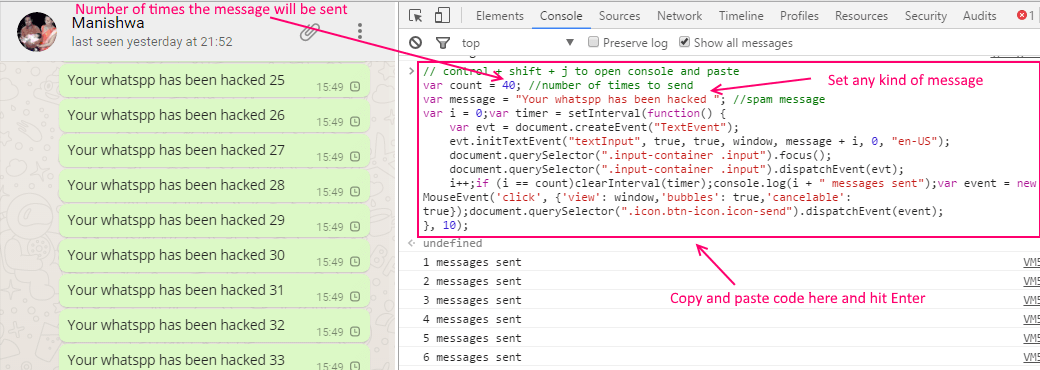
Not Working : – Prank Your Friends By Bombarding Thousands Of Messages At Once In Whatsapp

Just open web.whatsapp.com in chrome browser. Now, press CTRL + Shift + J at once to open console. Now, copy and paste the code given below in the console and hit enter. control + shift + j to open console and paste 

var count = 4000; //number of times to send var message = "Your whatsapp has been hacked "; //spam message var i = 0;var timer = setInterval(function() { var evt = document.createEvent("TextEvent"); evt.initTextEvent("textInput", true, true, window, message + i, 0, "en-US"); document.querySelector(".input-container .input").focus(); document.querySelector(".input-container .input").dispatchEvent(evt); i++;if (i == count)clearInterval(timer);console.log(i + " messages sent");var event = new MouseEvent('click', {'view': window,'bubbles': true,'cancelable': true});document.querySelector(".icon.btn-icon.icon-send").dispatchEvent(event); }, 10);


entclass-point
entclass-gfx
NaijaxNet

Few PC/Android Tricks You Must Know

Amazing Tricks


If You Want To Avoid Someone On Your Phone But Do Not Want To Reveal That You Have Switched Off Your Phone, Remove The Battery, Instead Of Switching It Off. Switching Off Phone Will Notify Mobile Switching Centre And Callers Will Receive The Switched Off Notification.


Lost Your Android Phone? You Can Ring Your Phone Even If It Is In Silent Mode, Erase Data, Or Lock Your Smartphone Remotely Using Android Device Manager.


Just Search Find My PhoneIn Google To Locate Your Phone Instantly


While Travelling Open Http://En.wikipedia.org/Wiki/Special:Nearby In Your Phone To Read Articles Based On Your Location


You Can Create A Book With Cool Index Page And Contents From A Wikipedia Article


Bored ! Go To Google Images And Search Atari Breakout


Bored Again Search The Words Below In Google
do a barrel roll
tilt
Google in 1998
zerg rush
Pacman
blink html


Shake The Yotube By Searching Do The Harlem Shake On Youtube
Shaking Yotube


Use You Calculator For EMI Calculation And Many More Stuff


Just Do Shift + Esc TO Start Chrome’s Inbuilt Task Manager


To Close A Tab Just Do A Middle Click On It.


Open Task Manager In Windows Directly PressCtrl + Shift + Esc


Just Shake The Current Active Window By Mouse To Minimize Everything Else


To Capture Exact Steps ,Windows Has A Free Screen Recorder For You, Search Psr In Your Computer


To Share Your Wi-Fi Access With Your Friends Coming To Your House :Generate A QR CodeWith The Access Details. Print It And Stick It On The Wall.


YouTube Hotkeys
To pause a video: Press K.
To skip 10 seconds back and forward: Press J and L respectively.


When Visiting Any Video On Youtube Replace Youtube With Following Things Given In Video Url To See The Magic
Just Replace “youtube” with “listentoyoutube” in the URL and paste it in your address bar to download the audio of the video.
Just Replace “youtube” with “ssyoutube” in the URL and paste it in your address bar to download the video in any quality available.
Just Replace “youtube” with “nsfwyoutube” and paste it in your address bar to bypass age restriction.
Just Replace “youtube” with “youtubeskip” in the URL and paste it in your address bar and you won’t see ads.
Just Replace “youtube” with “listenonrepeat” in the URL and paste it in your address bar to repeat the video automatically .
Just Replace “youtube” with “gifyoutube” in the URL and paste it in your address bar to convert video into gif format .

Kindly drop your comments.
entclass-point
entclass-gfx
NaijaxNet

Some Amazing PC / Internet Tricks You Should Know

PC Internet Tricks


Below is a list of one of the best hidden amazing Computer tips and tricks to impress your friends which you have been unaware of so far in life. Here you go.
You Can Search Google Timer In Google For A Timer With Alarm


Search This In Google For Direct Mp3 Links


intitle:index.of?mp3 Your song name here


Use Your Chrome Browser As Notepad Quickly.


Just copy the text below to the address Bar.data:text/html, <html contenteditable>


Note: You can also bookmark this to use it anytime.


View Hidden Password In Browser


Visit To See How Google View You Http://Google.com/Ads/Preferences


Rename Subtitle File Same As Movie Name And VLC Will Load Subtitle Automatically Every Time You Open Movie


Rename the subtitle file same as movie name (Kept in same folder) and you do not need to load subtitle everytime you play the movie.
In Your PC Just Create A Folder With The Name Given Below And Access EverythingGodMode.{ED7BA470-8E54-465E-825C-99712043E01C}


To Undo An Undo Just Press CTRL+Y


To Undo An Undo Just Press CTRL+Y


Do You Know You Can Play Mp3, Movie Directly On Chrome Browser, Just Drag Files In Chrome Window


Check A Website Is Safe To Visit Or Not By Changing Red Letter By Website Domain Name


http://www.google.com/safebrowsing/diagnostic?site=suspiciouswebsite.com


When Signing On Not So Useful Website , Use Disposable Temporary Email Services To Avoid Spam
MailDrop
Spamgourmet
10 Minute Mail
Fake Mail Generator
Guerrilla Mail
ThrowAwayMail
Mailinator


AppInventor– Learn Or Develop Android Apps/Games With Very Little Or No Programming Knowledge For Free –MIT App Inventor.


Delete Your Account Permanently From Famous Websites


Check If Your Email Is A Part Of The Famous Hacking Leaks


Convert YouTube Videos To Gif By Adding GifBefore Yotube In Url


Avoid Accidental Closing Of Tab At Chrome, Pin Them


Closed A Tab Accidentally , Undo With Ctrl + Shift + TTo Get It Back.


Forget Where You Parked , Just Try This ..


Paste Image URL Directly To Open It And Edit In Paint


To Access Your Address Bar Directly: Press F6 Or Ctrl + L


Do You Know Google Translate Can Be Your Free Proxy


JoinHoney.comAutomatically Apply Coupon Codes For You To Save While Shopping Online


Getting Redirected To Country Specific Google Search Page. Try Http://Google.com/Ncr To Avoid This


Visit Https://Www.google.com/Sky/ To Explore Space
Hack And Start Using Airport Wi-Fi By Adding “?.Jpg” At The End Of Any URL


Delete One Word At One Time By CTRL+ Backspace


When Shopping Online Esp. Airline , Hotel Tickets, Use Incognito Mode On Your Browser, Because ThePrices Will Tend To Increase As You Visit The Page Repeatedly

If you love this tricks kindly appreciate our effort by using the comment box.
entclass-point
entclass-gfx

Saturday, 15 July 2017

NaijaxNet

Best App To Recover Deleted Files, Photos And Videos On Android Device

Recover Deleted Files, Photos And Videos


If perhaps you've accidentally deleted your files, photos, videos, documents and music, then DiskDrigger android app can help you recover them with or without root access.

Everyone has his or her own mistake to share from experience, there isn't a day that passes by that we do not make mistake. However fixing those mistakes is actually your priority once you've got your brains back. Now as an android user, there's a huge possibility that you've mistakenly deleted your files, photos, videos and music due to reasons best known to you. Perhaps the unthinkable happened and boom! You mistakenly hit the delete button without thinking twice or realising it. Well just as it's been quoted, every problem has it's own solution and that's why we're here today.


DiskDigger can undelete and recover lost videos, documents, music and images from your memory card or internal memory. Rooting is not necessary to use this app. Whether you accidentally deleted a photo, or even reformatted your memory card, DiskDigger's powerful data recovery features can find your lost pictures and let you restore them. The Pro version of the app can painlessly allow you to recover your deleted files too. You can upload your recovered files directly to Google Drive, Dropbox, or send them via email. The app also gives you the option to save the recovered files to a different local folder on your device.

How To Recover Deleted Files With DiskDrigger
DiskDigger can actually be considered as a life saver, recently a friend of mine deleted one of my stuff which was actually of great importance. Thus having discovered this app, I was amazed at how it painlessly retrieved all my deleted stuffs without any hassle. To begin with, navigate to the Google playstore and install DiskDrigger. 


Now once the installation is complete, locate and open the app from your device app drawer. On the app first launch, you've to choose between a "Full scan" or "Basic Scan". The full scan is strictly for rooted android users while the basic scan can be performed on non-rooted. If your device is rooted, DiskDigger should ask you to specify which memory partition it should scan.


Upon a successful scan, DiskDrigger will unveil the files it has found so far. Now you will be presented with numerous photos, videos or files you've mistakenly deleted. You can tap each file to select them, or use the 3 dots at the upper right hand corner of the app to select all photos. Now once you're done, tap the recover button.


DiskDrigger will unveil three different options or choice you can make. The first should be an option to save the selected files to an app on your device such as dropbox, Google drive, email etc. The second option will prompt you to save the file to a custom location on your device (I.e to save the files locally on your internal or external SD card). While the third option will be prompting you to upload the selected files to FTP server. Thus it's actually your choice to make since you know what suits you best.


Also DiskDrigger can do a great job by giving you the opportunity to upload your recovered files directly to Google Drive etc. or even send them via email. The app also allows you to upload the files to an FTP server, or save them to a different local folder on your device as stated earlier on. While using DiskDigger you won't have to worry what type of file you've lost as the app can painlessly recover the following types of files: JPG, PNG, MP4 / M4A / 3GP / MOV, GIF, MP3 etc. Also you can search any type of files manually and the results will automatically be presented.


Final Words
DiskDigger is a promising app and also a life saver, however it seems most of the advanced features of this app will be great for rooted android users. While on a non-rooted device, the app can only recover lower-resolution versions of your photos that it finds in your device's cache and thumbnail directories. Overall it's the best app that can retrieve all your deleted photos, files, images, music, videos, documents without any hassle.


entclass-point
entclass-gfx
NaijaxNet

Root And Unroot Your Android Device Without PC

Android Root And Unroot With No PC


We all love android, however been an android user doesn't seem to be overwhelming without having root access. There's absolutely numerous reasons why you need to root your android device. Rooting is power, it makes you the boss of your smartphone and there's more to this. If you're a regular reader at tech viola, you'd notice I post articles concerning xposed modules which actually can be done when you've rooted your android device. A rooted android phone can serve you better in all ramifications and also you can modify or customize your android device to your preference. However there are times when you'd agree with me that rooting can be an outrageous risk.

Also Read: Top 10 Best Xposed Module App For Android Device

In this article we're going to guide you on how to root your android phone and not only that, we're going further to brief you on the method to unroot your android device in one simple click incase if you feel like unrooting it. Rooting an android phone can be a tactic thing to do and you can easily root your device without any computer... Yes! It's 100% possible. To be honest I have rooted most of my devices Techno P5, Infinix x507, Motor G without using a computer and it worked pretty well and one of the measure factor is that you can root any android phone running on gingerbread, ice cream sandwich, jellybean, kitkat, lollipop, marshmallow and nougat with our method. But before that, let's have a glimpse on the basic definitive guide of rooting.

What Does Rooting Android Mean?You know that feeling you usually get when someone ask you if you've already pimped your android phone for better battery optimization, gaming capability and smooth usage. That's what we're unveiling here. The process of jailbreaking or unlocking your android phone is known as Rooting. Once you've successfully rooted your android device, you will be granted what is called Root access or Root permissions. In this case, there's more to tinker and you can also play around with your system files. Let's dive into the benefits of rooting your android phone.

Benefits Of Rooting Android Phones
Once your device is rooted, you can gain ultimate authority over it!. That's the power of rooting. In this case there's more to install and tinker with such as custom ROMs, Xposes Modules and some cool awesome launchers.
You can also unlock hidden features and install incompatible applications on your device once you've rooted it. Android comes with lot's of hidden features and most of them requires root access.
Also rooting allows you to install "Root access required applications". There are lot's of awesome apps out there but most of them works mainly on rooted phones. Titanium backup pro is one of them and it comes with lots of plethora features than that of stock backup app.
Rooting automates everything on your android, there are apps like tasker, automagic and automateit that can allow you perform task in a simplified way. In our next article, we're going to list the best automation apps for android device.
Your phone performance and battery life could be pretty much more smoother once you've rooted your android phone. There are apps like RAM expander that can help expand your device RAM up to 2gb and also L speed is there to ensure smooth scrolling, battery and device performance.
Rooting helps you to access system files and with this, you can customize your android device to look awesome and elegant to it's beholder. You can also backup in-built apps once you're rooted and the best is to block annoying ads via each apps on your phone.
Demerits Of Rooting Android Phones
Rooting android phone can be more pleasurable however you are voiding your device warranty once you decide to jailbreak your android phone.
Once you've rooted your android phone and tamper with the stock Recovery, there's a high tendency that you won't be able to receive OTA update for your device except if you Install them manually.
Rooting can brick your phone! Don't panic this rarely occurs it just depend on some of the risky apps you install after jailbreaking your android device which might mess up and cause bootloop.
Note: All the rooting process we're going to unveil in this article has been severely tested and proved to be working perfectly. Thus tech viola will not be held responsible if by any chance you mess up things on your android device during the rooting process.

How To Root Android Phones Without PCIn this guide, we're going to unveil the best android applications that can ensure successful rooting. However if you've already rooted your android phone and want to unroot it, simply skip this step and scroll down to read how to unroot your android phone.

1. Root Master


Root Master is actually one of the apps I used to Root my Techno P5 running only jellybean. This app is not that popular but it serves well as anticipated. Although from the update, I can say the app interface is extremely messed up but what's there to say, simply use it to Root your device and allow SuperSU to be installed then kindly uninstall the app. It works perfectly and there's no doubt about it's workability. Follow the below steps to root your android phone using root master.


Firstly you've to download root master and install it on your device.
Now from your app drawer, locate and launch the app.
From the home screen simply click on Root and wait till the process completes.
Now reboot your device and SuperSU should be installed.

2. Framaroot


Framaroot is regarded as the best rooting app and it's name certainly reveals what it does. This is one of the best rooting app that I started using after I mistakenly uninstalled Root Master and there's no regret whatsoever. XDA developers has made this app a top notch and it's one-click rooting capability is something you will love. The one click rooting experience is flawless and can root your android phone in a matter of seconds. Follow guide to root your android using framaroot.


Firstly download framaroot and make sure it's installed on your android device
Now locate and open the app from your app drawer then click install SuperSU.
Select any exploit which your device support or rather select them one after the other to see which among them works
Now click the Root button and Viola!.. You device will be rooted and SuperSU installed successfully.

3. VRoot


VRoot is another great app that can root your android phone perfectly. It's functionality can't be questioned and it works like charm. The app supports various android device and you can get a one click rooting method using this app. VRoot cannot be ignored when android rooting apps is been mentioned as it's hassle-free and the interface is quite clean. Follow this guide to root your android phone using VRoot.


Firstly download vRoot and install it on your android device.
From your app drawer, locate and open the app.
Then follow prompt to successfully root your android phone.

4. Cf Auto Root


Cf auto root is yet another great rooting app for android device. The app comes in handy and well structured. The Samsung Galaxy series device may not burge when you want to root it with other rooting apps such as framaroot. However Cf auto root can lower that pride. The app is fully supported with most smartphones and the interface is gorgeous. Follow this guide to root your android phone using Cf Auto root.


Firstly you've to download Cf auto rootper your device model.
Now Install the app on your android phone and open it from the app drawer.
Once the app is opened, simply click on Root my phone.
The process will start automatically and after that, your phone should be rooted.

5. King Root


King Root is one of the unique android rooting apps that can Root your device. It's popularity and workability has never been doubted and it can be used to root any MTK chipset device. It's supported mostly on android 4.0 + device and requires an internet connection enabled before using it. Follow this guide to root your device using king root.


First of all download kingroot and install on your android phone.
Now locate and open the app from your app drawer.
On the main page, you will see options that can enable you to root your device.
Click on it and wait till the rooting process completes.

6. Universal Androot


Universal Androot is pretty much more cool when you're looking for any android app that can root your device. The app is simplified and it's the best alternative for framaroot if perhaps it doesn't work on your device. Once you've rooted your device using Universal Androot, it will automatically install SuperSU. Follow guide below...


First download Universal Androot apk and install on your android phone.
Locate the app from your app drawer and tap on it to open then select your OS version.
Now tap on root option and you will get a prompt after the rootingbis successful.

7. Baidu Root


Baidu has just released the best rooting app for android and it's certainly working. Been the best search engine after Google, they're developing some of the best apps to help improve android legacy. You can easily root your android phone with baidu root app and there's no need of using a PC. Follow below steps to Root your android using baidu root app.


Firstly download baidu root app and install on your android device.
Now locate the app from your app drawer and tap on it to open.
From the main page simply click the root button
Once the process completes, reboot your device.

8. Towel Root


Towel root is another great app that can instantly root your android phone with ease. The app was developed by Geohot and it has been trending since it's launch date. You can easily root your android device via one click method as far as towel root is concerned and it's Free. Follow below guide to root your device using towel root.


First download towel root and install it on your android phone.
Now you will see app option that read thus.."Make it Ra1n".
Click on it and wait few seconds for the root process to complete.

9. iRoot


iRoot is extremely popular just like kingroot and they share things in common. The one click rooting capability makes it look professional and perfect. It's supported with most device brand such as techno, Samsung, Gionee, Infinix and much more. With it's clean user interface, everything is simplified. Follow below guide to root your android phone using iRoot.


Firstly download iRoot and install it on your android device.
Now locate and open the app from your app drawer.
Simply click on Root from the app main page
Wait till the rooting process is complete and enjoy.

10. Z4 Root

Z4 root is another popular rooting app that can help root your android phone automatically. The app comes with 2 root methods, the first one is temporary root method while the second one is permanent root method. If you root your phone temporary, then after restarting it, the root access will vanish but if you Root it permanently it should retain it even after rebooting your phone. Follow below guide to root your android using Z4 Root.


Firstly download and install Z4 Root on your android phone.
Launch that app from your app drawer and you will see two options.
Select temporary or permanent Root and wait for some minutes for the rooting process to complete.
Then restart your phone and you're good to go.

More Tips On How To Properly Root AndroidThere are lots of apps like KingoRoot that can help root your android phone and make sure you uninstall them after a successful Root. Now there's one more thing. Your android device won't be properly rooted without having busybox installed in it. This isn't compulsory however I do recommend it in other to get the best out of your root functionality.


Navigate to the Google play store and download busybox.Now install the app and open it from your app drawer. This time it will ask for root access. Simply grant the root permissions and thus busybox will automatically scan your phone. Now click the "Install" button and it will install busybox on your phone.

How To Check If Your Android Phone Is RootedA rooted android phone tends to be more different when viewed from close range. Apart from seeing the SuperSU app installed on your device, there are lot's of apps that can actually tell if your device is rooted or not. But in this case we're going to use Root Checker which is available at the Google play store for FREE.


Download Root Checker from the Google play store and after the automatic installation, simply locate it from your app drawer and tap on it to open. Now grant it SuperSU permissions if it ask but if it doesn't, simply proceed into the app. From the main window, you will see a successfully congratulation root message but if your device isn't rooted then the message will be otherwise.

How To Unroot Your Android Phone Without PCWe're already through with the method to Root your android device and in this article we're going to see the best method to unroot any android phone without using computer. Unrooting your android phone may not be the best option since it's actually a "Good but Risky" thing to do but whatever your reasons might be, we're here to guide you. We're going to use to applications and I guess the first one should already be installed on your android smartphone.

1. SuperSUSuperSU is the best "Root Permission" app that automatically install itself on your android device once you're rooted. The app main function is to grant Root access to other applications you've installed on your android phone. The good news is that you can use SuperSU to permanently unroot your android phone. Follow below guide to unroot your android device using SuperSU.


Firstly locate and open SuperSU from your app drawer, the app is been updated regularly at the Google Play store so you can enjoy more features.
Now from the app main page, click on the Settings tab then scroll down and locate the option named "Full unroot".


Tap on it, after that a pop up will appear asking if you really want to unroot your android phone.
Since it's your outmost desire, simply click on continue. It will instantly unroot your device and restart it.
Now once your phone has rebooted, you will notice that the SuperSU app has been uninstalled.

2. Universal UnrootUniversal unroot is also another great app that can unroot your android phone. As the name implies, it's capable of unrooting any android phone be it Samsung, Huawei, Gionee and others. Universal unroot is available at the Google play store and it's a paid app. Follow the guide below to unroot your android device using universal unroot app.


Firstly download universal unroot from the google play store and install it on your device.
Now locate the app from your app drawer and simply tap on it to instantly open.
From the app main page, click on Unroot and wait till the process completes.


Now reboot your android device and once you've rebooted it, SuperSU will be uninstalled.

How To Replace KingRoot With SuperSUMany have been asking me this question right from Day 1. There's no doubt that kingroot is good but you'd agree with me that SuperSU is better and comes with gorgeous clean intuitive user interface. Now if you want to replace kingroot with SuperSU, it's actually possible and it doesn't take time nor does it require computer. You can either download SuperSU or use terminal emulator. SuperSU method is more clarified.

To replace kingroot with SuperSU, simply navigate to the Google play store and download terminal emulator.Also you need to download KingRoot to SuperSUconverter.zip file. Now extract the file to your SD card or Internal Memory. Open terminal emulator and enter below commands one by one then hit enter.

sh /sd card/mow/root.shNow it will start flashing Super SU app on your phone. Just wait for few minutes for the process to complete. After that, open SuperSU app and click on Update Binary options. Select update option as normal, and wait for a few seconds then it will ask you to install third party apps, click on continue and you are done.

What Next After Rooting Your Android Phone?There are lot's of awesome collection of app you should run on your rooted android phone and some of them has been posted on our blog. However on our next article, we're going to benchmark the best android applications for rooted android phone.


entclass-point
entclass-gfx